GTM Add to Cart Trigger | Complete Configuration and Optimization Guide (2025 Latest)
This article will systematically analyze the underlying logic, configuration pitfalls, dynamic parameter passing, and other advanced techniques of GTM add-to-cart triggers, based on the latest Google official guide (2025 GA4 version) and combined with e-commerce client cases I've personally verified (such as a leading brand achieving a 27% increase in shopping cart conversion rate through trigger optimization).
Whether you're a beginner just getting started with GTM, or a developer needing to adapt to multiple platforms (such as Shopify or WooCommerce), this guide will help you quickly achieve zero-error data tracking.
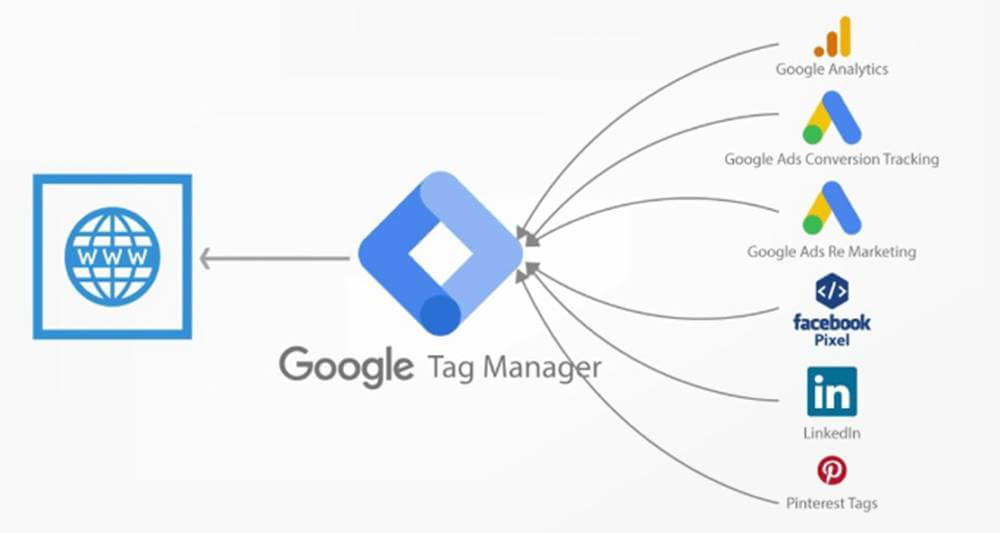 ✅ Available Selectors:
GTM Configuration
(dlv is Data Layer Variable abbreviation)
Verify Trigger Configuration Logic
Operation:
Network Request Blocked
Operation:
Parameter Differentiation Design
GA4 Tag Configuration:
Use Custom Dimensions for Filtering
Operation:
✅ Available Selectors:
GTM Configuration
(dlv is Data Layer Variable abbreviation)
Verify Trigger Configuration Logic
Operation:
Network Request Blocked
Operation:
Parameter Differentiation Design
GA4 Tag Configuration:
Use Custom Dimensions for Filtering
Operation:
Core Principles of GTM Add-to-Cart Triggers
From "Switch" to "Data Hub" In Google Tag Manager (GTM), a trigger is not simply a "switch," but a dynamic rule engine. It monitors specific interaction behaviors on web pages (such as clicks, scrolls, form submissions) or data layer events (such asadd_to_cart), determines whether preset conditions are met (such as "mobile users only" or "product price > $100"), and then decides whether to activate associated tags.
Trigger Types:
- Auto Events: Built-in listeners for common behaviors like page loads (Page View), element clicks (Click), form submissions (Form Submission).
- Custom Events: Events actively pushed by developers through
dataLayer.push()(such asadd_to_cart).
- Can dynamically match based on variables (Variables), for example:
{{Click ID}} == "cart-button" && {{Page Path}} contains "/product/". - Supports regular expressions, logical operators (AND/OR), and other advanced rules.
Precise Data Flow Transmission
Here's the complete chain from user button click to data reporting: User Action Occurs:- User clicks the "Add to Cart" button on the page.
- Technical Dependency: Button must have identifiable HTML attributes (such as
class="cart-button") or have data layer events integrated.
- Option 1 (Front-end Click Listener): Use GTM's "Click" trigger to directly listen for button click actions.
- Option 2 (Data Layer Trigger): Website code actively pushes custom events (such as
dataLayer.push({event: "add_to_cart"})).
- GTM checks trigger rules (such as event name is
add_to_cart, and page path contains/product/). - Common Pitfall: Selector conflicts (multiple buttons sharing the same Class), inconsistent event naming.
- Associated GA4 event tag is triggered, carrying dynamic parameters (such as product information) and sending to the analytics backend.
- Key Verification: Check in GA4 real-time reports whether the
add_to_cartevent was received successfully.
User clicks button → Data layer pushes event → GTM trigger matches → GA4 tag activated → Data stored for analysisWhy You Must Rely on the Data Layer
- Dynamic Parameter Capture: Directly grabbing data (such as product price) from front-end DOM elements can easily fail due to page structure changes, while the data layer can stably transmit structured parameters.
- Cross-Platform Compatibility: Whether it's a React SPA or a traditional PHP website, the data layer can unify event formats.
- Privacy Compliance: Through the data layer, you can flexibly control the scope of user behavior data collection (such as excluding sensitive parameters).
javascript
// When button is clicked, push event and product data
document.querySelector(".cart-button").addEventListener("click", function() {
  dataLayer.push({
    event: "add_to_cart",
    item_id: "PRODUCT_123",
    price: 29.99,
    currency: "USD"
  });
});
2025 Latest Configuration Steps
Locating Key Elements in 5 Minutes
Confirm Technical Environment Ask yourself: Does my website already use a data layer (common in React/Vue SPA applications)?- No data layer → Choose Method 1 (Click Trigger).
- Has data layer → Prioritize Method 2 (Data Layer Event).
- Open Chrome browser, right-click the "Add to Cart" button → Select "Inspect" (open Developer Tools).
- In Elements panel, find the button's HTML code, record its
idorclassattributes (for example:id="add-to-cart-btn"). - Verify Selector: In Console panel, enter
document.querySelector('#add-to-cart-btn'), if it returns the button element, it's correct.
html
<button id="add-to-cart-btn" class="btn-primary">Add to Cart</button>#add-to-cart-btn (ID) or .btn-primary (Class, ensure uniqueness).
Configure Trigger (Choose One of 3 Methods)
Method 1: Click Trigger (No Code, Beginner Friendly) Create Trigger GTM Dashboard → Triggers → New → Select Click – Just Links (link button) or Click – All Elements (regular button). Trigger Conditions:- Select "Some Clicks" → Set
Click IDequalsadd-to-cart-btn(orClick Classescontainsbtn-primary). - Note: If button has no ID/Class, use CSS selector instead (such as
button[data-action='add-to-cart']).
- Create new tag → Select GA4 Event → Set event name to
add_to_cart. - Add Parameters: Manually enter product information in "Event Parameters" (need to capture via variables in advance, see parameter passing example below).
javascript
// Native JavaScript example
document.getElementById("add-to-cart-btn").addEventListener("click", function() {
  dataLayer.push({
    event: "add_to_cart",
    ecommerce: {
      items: [{
        item_id: "PRODUCT_123",  // Required
        item_name: "2025 New Smart Watch",
        price: 299.99,
        item_category: "Electronics"
      }]
    }
  });
});- Trigger: New → Select Custom Event → Enter event name
add_to_cart. - Tag: In GA4 event tag, directly reference data layer variable
{{ecommerce}}to automatically pass parameters.
Testing and Verification (Must Do!)
GTM Preview Mode Before publishing container, click GTM top-right "Preview" → Open website → Click "Add to Cart" button. Success Indicators:- See
add_to_cartevent trigger in debug window. - Check whether data layer parameters are passed completely (as shown in the image below).
- Enter GA4 → Real-time Reports → Check whether
add_to_cartevent appears, and verify parameters (such asprice).
- No data? → Check whether GTM code is deployed on website, whether trigger conditions are too strict.
- Parameters missing? → Ensure data layer variables are enabled in GTM "Variables" configuration (check "ecommerce").
Parameter Passing Example (Method 2 Advanced)
Dynamically capture product information in GA4 tag: Create Variable in GTM: Variable Type → Data Layer Variable → Enter variable nameecommerce.items.0.item_id (corresponding to product ID).
GA4 Tag Parameter Configuration:
yaml
event_name: add_to_cart
parameters:
  item_id: {{dlv - ecommerce.items.0.item_id}}
  item_name: {{dlv - ecommerce.items.0.item_name}}
  currency: USD
value: {{dlv - ecommerce.items.0.price}} What to Do If Trigger Doesn't Work?
If data doesn't appear in GA4 reports, it often stems from rule conflicts, missing data layer events, or permission errors. Using our provided methods, you can fix it within 10 minutes. Check If Data Layer Event Is Pushed Operation:- Open browser console (F12), enter
dataLayerand press Enter, click "Add to Cart" button, observe whether there's anadd_to_cartevent record.
- Event name spelling error:
add_to_cart(correct) vsaddToCart(incorrect). - Click event not bound: Button has no JavaScript listener code.
javascript
// Correct event push code
document.querySelector("#cart-button").addEventListener("click", function() {
  dataLayer.push({ event: "add_to_cart" });
}); - Enter GTM preview mode, click button, then check trigger firing status in debug panel.
- Ensure trigger type matches (for example, click trigger needs to select "All Elements").
- Check whether trigger conditions are too strict (for example, limited page path to
/product/, but actual page is/products/).
- Check in GA4 real-time reports whether
add_to_cartevent is received, and verify parameters (such asitem_id).
- Data layer pushed
product_id, but GA4 tag parameter name was set toitem_id, causing data loss.
What to Do If Data Is Delayed or Lost?
GTM Container Failed to Load Check Points:- Use Google Tag Assistant tool to detect whether container loads on all pages.
- Place GTM code at the top of HTML
<head>to avoid being blocked by third-party scripts. - Asynchronous loading code:
html
<!-- Google official recommended code snippet -->
<script async src="https://www.googletagmanager.com/gtm.js"></script> - In browser console "Network" tab, filter
collect?v=2requests (GA4 reporting endpoint), check status code.
- Ad blocking plugins: Users have uBlock Origin and other tools installed that block tracking requests.
- Firewall rules: Corporate intranet blocks GA4 domain (such as
www.google-analytics.com).
- GA4 has a default 24-48 hour data processing delay, real-time reports only show partial data.
- Synchronously send events to BigQuery in GTM for real-time backup of raw data.
How to Distinguish "Add to Cart" and "Checkout" Events?
Event Naming Standardization Rules:add_to_cart: Only used when user clicks "Add to Cart" button.begin_checkout: Triggers when user enters checkout page.
javascript
// Add to cart event
dataLayer.push({ event: "add_to_cart", ... });
// Checkout event
dataLayer.push({ event: "begin_checkout", ... }); - Add exclusive parameters for
begin_checkoutevent such aspayment_method(payment method),shipping_type(shipping type).
json
// Checkout event parameters
{
  "event": "begin_checkout",
  "items": [...],
  "payment_method": "credit_card",
  "coupon_code": "SUMMER2025"
} - Create "Event Type" custom dimension in GA4 to distinguish between two event types via filters.
javascript
// Add to cart event with custom dimension
dataLayer.push({
  event: "add_to_cart",
  custom_dimensions: { event_type: "cart_add" }
});